Hide Files
3.8
Size: 204.8 Bytes
Downloads: 4194
Platform: Windows (All Versions)

There are certain files or certain folders on your computer that you would not want others to be able to access. The appropriately named Hide Files security utility is here to meet your privacy needs. This application prevents unauthorized access to the files or folders you want to remain private. It hides them out of sight so others can’t access them.
Getting Hide Files up and running is a fairly straightforward process. You need only download a 747KB archive, extract its contents, run the executable inside, then click through the standard setup wizard. Before the installation process completes, your browser will launch and you will be directed to the Hide Files official webpage where you can view more info about the application.
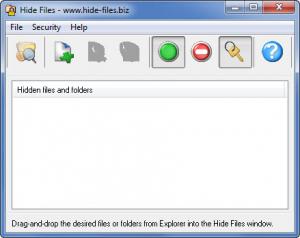
The words “simplistic” and “minimalist” come to mind when talking about the application’s interface. The large window in the middle displays the files and folders you choose to be hidden. The big green button activates the “hide files” function, while the red one disables it. There’s nothing too complicated about the interface – even a novice will immediately feel at home.
The simplest way to hide a file or folder is to drag and drop it onto the application’s interface; alternatively, you can use the “Add new mask” button. To hide a file/folder out of sight, press the aforementioned green button; to get the file/folder to be visible again, press the red button.
Hiding files/folders out of sight is useless if anyone can access the Hide Files application and bring them out of hiding. The thing is that not everyone can access the application – you can password protect it. Set up a password, and thwart the attempts of anyone who wants to use Hide Files to bring your private files or folders out of sight.
Speaking about accessing Hide Files, you can do so by double clicking the desktop shortcut, by clicking the shortcut in the Start menu, or by using a hotkey. The default hotkey is Ctrl + Alt + Shift + H. Use this hotkey to easily launch Hide Files.
Hide Files is only free to try. The trial version will make a file inaccessible, but it will not hide it out of sight. I could still see the image file I selected to be hidden on the desktop. But when I opened it, I was presented with a “can’t open this picture” message.
With Hide Files on your PC you can make sure your private files and folders remain private.
Pros
Use Hide Files to hide files or folders out of sight. Use a handy hotkey to easily access the application. You can password protect Hide Files.

Cons
The trial makes a selected file inaccessible, but it doesn’t hide it out of sight.

Hide Files
3.8
Download
Hide Files Awards

Hide Files Editor’s Review Rating
Hide Files has been reviewed by George Norman on 16 May 2012. Based on the user interface, features and complexity, Findmysoft has rated Hide Files 3 out of 5 stars, naming it Very Good